Channel 4 App Not Working on Smart TV? UK Fix for Fire TV, Samsung, LG and Google TV
The Channel 4 app can fail in several ways on UK living-room devices: a black screen, sign-in loop, frozen adverts, missing app icon, playback error, or a stream that works on your phone but not on the main TV. This guide keeps the fix practical for Smart TV, Fire TV, Samsung, LG and Google TV users.
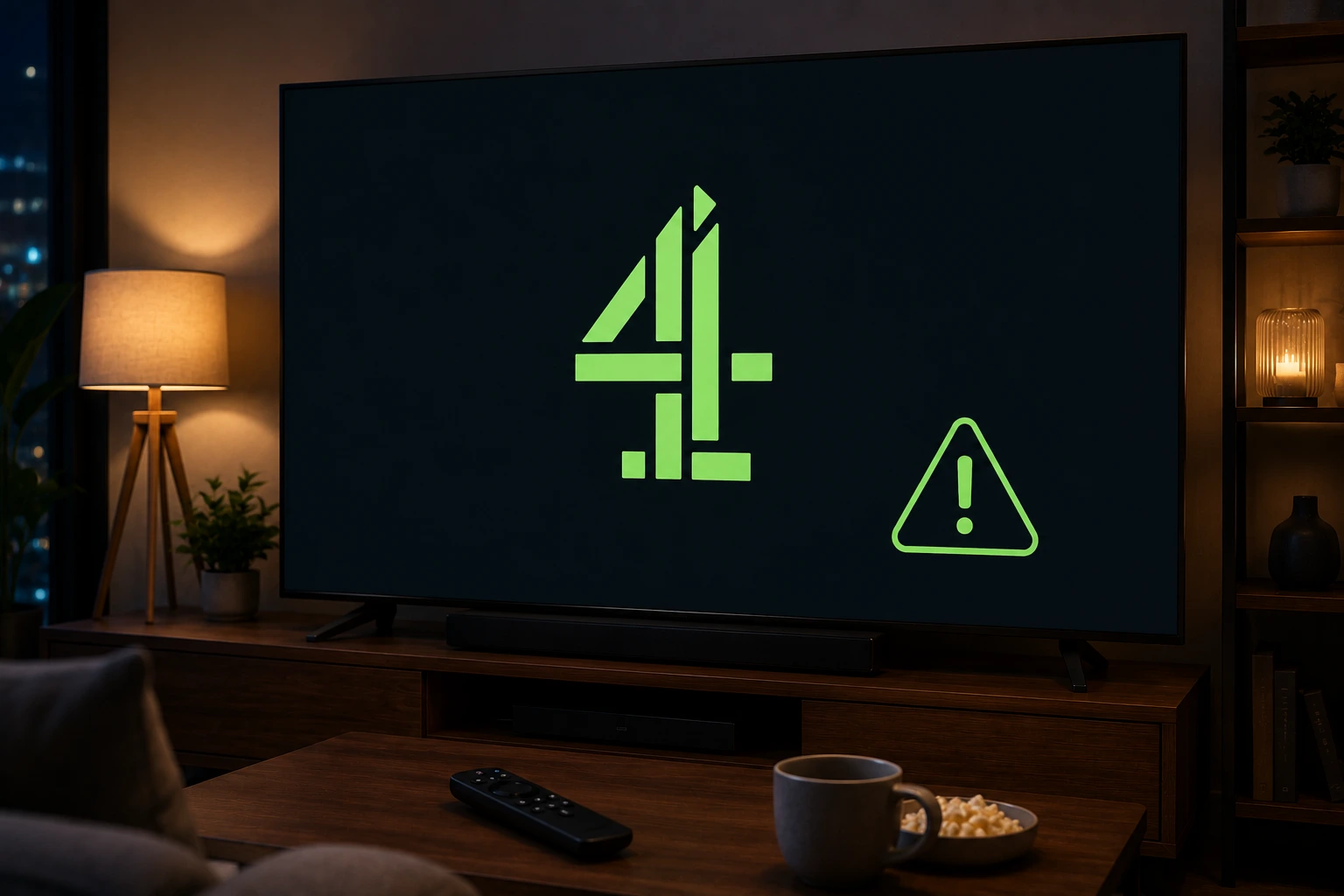
Quick answer: If the Channel 4 app is not working, restart the TV or streaming stick, update the app, confirm your Channel 4 account sign-in, test another programme, and check whether the issue is app-specific or Wi-Fi related. If the app is missing, your device or TV year may not support the current app.
UK setup note: Test the official app first, then check your device, Wi-Fi and account. Avoid unknown APKs or random free stream sites; they can be unstable and unsafe.
Why the Channel 4 app fails on UK Smart TVs
Channel 4 is a major UK streaming app for catch-up shows, box sets, films and selected live content. Because the app appears on many different device platforms, the same symptom can have different causes: an old TV operating system, weak Wi-Fi, a stuck account session, unsupported content on that device, or an app update that did not install cleanly.
Start by checking whether the problem affects only Channel 4 or every streaming app. If BBC iPlayer, ITVX and YouTube also buffer, the issue is probably your connection or TV. If only Channel 4 fails, focus on app updates, sign-in and reinstall steps.
Check these basics before deleting the app
Do not remove the app immediately if you do not know your login details. First test another programme, restart the TV from the wall for 30 seconds, check your broadband on another device, and confirm whether Channel 4 is having a temporary service issue.
If the app asks you to sign in again, use a fresh code from the TV screen. Old activation codes can expire, and entering them twice can create a loop.
Fire TV fix for Channel 4 app problems
On Fire TV, open Settings, then Applications, Manage Installed Applications and select Channel 4. Use Force Stop first, then reopen the app. If it still fails, clear cache, restart Fire TV and check the app store for updates.
If the app crashes after adverts, make sure your Fire TV has enough storage. Low storage can affect ad loading, menus and video playback. Delete unused apps, restart the stick and test again before match night or a live show.
Samsung and LG Smart TV checklist
For Samsung and LG TVs, update the TV software first, then open the app store and check whether Channel 4 has an update. If the app is visible but does not load, remove and reinstall it if your TV allows that. If the app is missing, your TV model may be too old for the current version.
Older TVs often lose support when the broadcaster updates the app. In that case, a modern Fire TV, Roku, Google TV or other supported streaming device is usually cleaner than a factory reset.
Google TV and Android TV notes
Channel 4 availability on Google TV and Android TV has changed over time, so check the Google Play Store on your exact device. If the app installs but certain programmes are missing, test the same content on mobile or browser to separate device availability from account or rights issues.
Avoid sideloading unofficial APKs. They can be outdated, unsafe, and may not support the current account or DRM requirements. Use the official app store whenever possible.
When the problem is Wi-Fi, not Channel 4
If the app loads menus but buffers during playback, improve the home network. Use 5 GHz Wi-Fi near the router, Ethernet where possible, pause cloud backups and large downloads, and restart the router before important live viewing.
A phone beside the router may work while a TV across the room fails. Test from the same room as the TV, not only from your phone near the router.
Try EasyFlixTV Free for 24 Hours First
Before choosing a plan, you can test EasyFlixTV on your Smart TV, Firestick, Android box, X96, phone or tablet. Check the channels, streaming quality and setup first, then continue only if it works well for you.
Simple match-night checklist
- Open the app 30–60 minutes before the programme or live event.
- Confirm the account is signed in and the right membership or access is active.
- Restart the TV, Fire TV, Roku or Android TV device before testing.
- Use 5 GHz Wi-Fi near the router or Ethernet where possible.
- Keep a backup device ready, such as a phone, tablet or laptop with HDMI.
Related UK streaming guides
- BBC iPlayer Not Working on Smart TV? UK Fix
- ITVX Not Working on Firestick, Roku or Smart TV?
- Freeview Play vs Freely: UK TV Setup Guide
- Premier League UK Streaming Guide
Official sources to check
Frequently asked questions
Why is the Channel 4 app not working on my Smart TV?
Common causes include an outdated app, unsupported TV model, weak Wi-Fi, expired sign-in session or a temporary Channel 4 service issue. Restart, update and test another programme first.
Why does Channel 4 show a black screen on Fire TV?
A black screen can come from a stuck app session, low Fire TV storage, cache problems or weak Wi-Fi. Force stop the app, clear cache, restart Fire TV and update the app.
Why is the Channel 4 app missing from my TV?
Some older Smart TVs or device platforms may not support the current app. Check the app store for your exact model and consider using a newer streaming device if the app is no longer available.
Should I use a VPN to fix Channel 4?
A VPN is not a normal fix for app errors and can make UK location or playback checks worse. Fix the app, device and Wi-Fi first.
Is EasyFlixTV an official Channel 4 service?
No. EasyFlixTV is an independent setup and troubleshooting guide. Use Channel 4 support for account, rights and official app support.
Final thoughts
Most UK streaming app issues can be narrowed down quickly when you separate account access, device support and home Wi-Fi. Start with official app support, keep your device updated and test your setup before an important live programme.
Need help with your UK streaming setup?
Message EasyFlixTV with your device model and the app problem. We can help you check Smart TV, Fire TV, Roku, Android TV or mobile setup before you choose a plan.
Message EasyFlixTV on WhatsAppContact on Telegram