Prime Video Not Working on Smart TV? UK Fix for Fire TV, Samsung, LG, Roku and Live Sports
Prime Video problems can appear as a black screen, spinning circle, sign-in error, live stream issue, payment warning or app crash. This UK-focused guide covers Smart TV, Fire TV, Samsung, LG, Roku and live sports preparation without jumping straight to a factory reset.
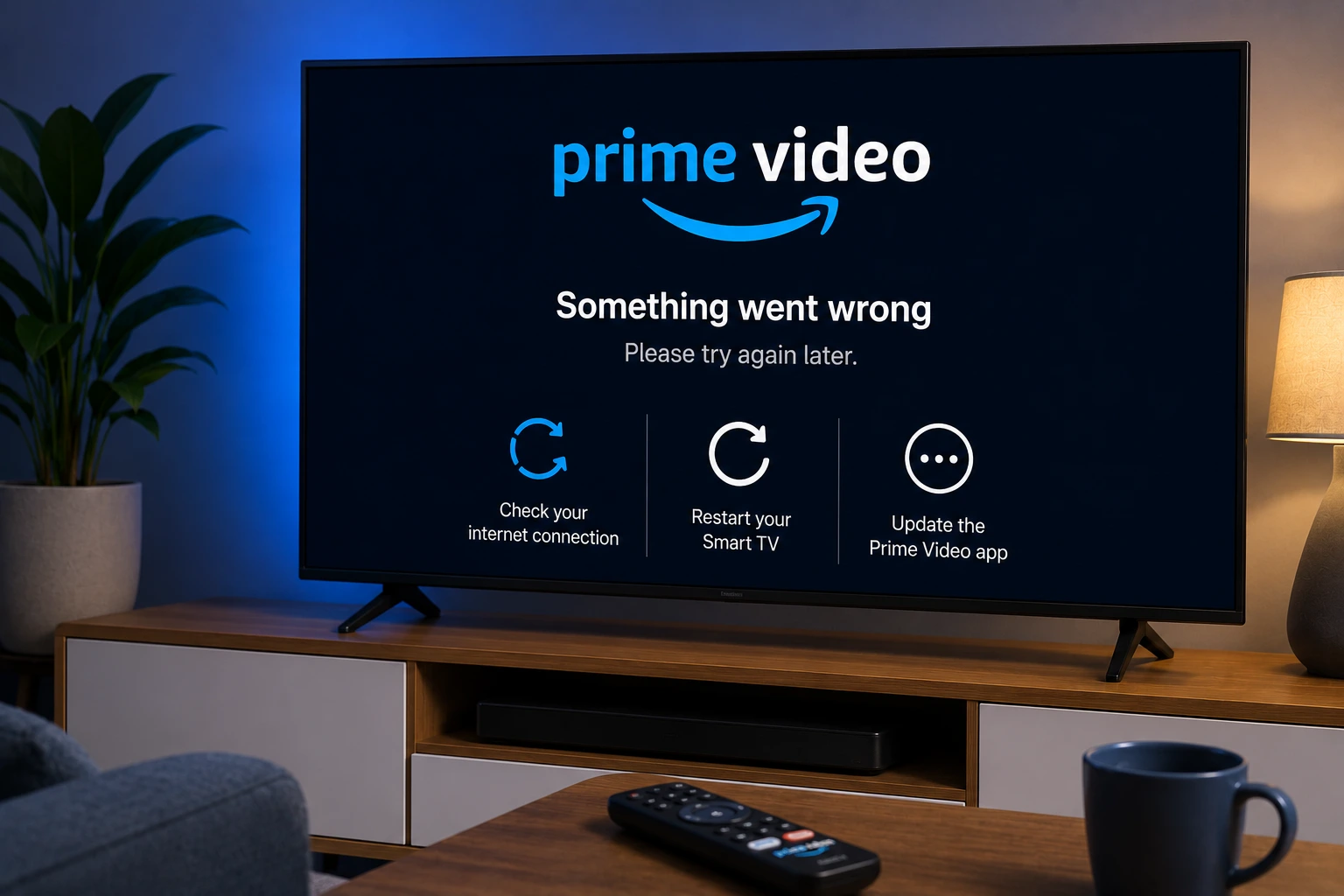
Quick answer: If Prime Video is not working, close the app, restart the TV or streaming device, update the app, check date and time settings, disable VPN/proxy services, test another title and verify your Prime account or rental access before reinstalling the app.
UK setup note: Use the official Prime Video app and account help pages. Third-party APKs or unofficial live-event pages can cause sign-in, quality and security problems.
Why Prime Video stops working on UK Smart TVs
Prime Video runs on many devices: Smart TVs, Fire TV, Roku, game consoles, phones, tablets and browsers. Because of that, the same error can have many causes. A Samsung TV may need a firmware update, a Fire TV Stick may need cache cleanup, and a live sports stream may need a stronger connection than a normal film.
Start by checking whether every app is failing or only Prime Video. If YouTube, BBC iPlayer and ITVX also buffer, the issue is probably the device or Wi-Fi. If only Prime Video fails, focus on account access, app updates and Prime Video support steps.
Do the official quick fixes first
Close Prime Video fully, restart the TV or streaming device, and wait at least one minute before turning it back on. Then check that the TV date and time are set automatically. Incorrect time settings can break secure streaming checks and cause login or playback errors.
Update the app from your device app store, update the TV software and disable VPN or proxy settings while testing. VPNs can create location errors, slow the stream and make Prime Video think your connection is suspicious.
Fire TV and Firestick Prime Video fix
Prime Video is built into Fire TV, but that does not mean it cannot get stuck. Restart the Fire TV from Settings or unplug it for one minute. Then check Fire OS updates and remove unused apps if storage is low.
If Prime Video opens but live video buffers, restart the router, move the Firestick closer to the router or use an Ethernet adapter. Avoid USB power from the TV if the Firestick restarts randomly; use the proper power adapter.
Samsung, LG and Roku checklist
On Samsung and LG Smart TVs, update the TV firmware first, then update Prime Video. If the app is frozen, remove and reinstall it if your TV allows this. If your TV is older and the app store no longer updates Prime Video, a newer streaming stick may be a better fix than a full TV reset.
On Roku, check for system updates, restart the device and remove/reinstall the Prime Video channel only after you know your login details. Test a normal film before testing a live sports event.
Fix Prime Video live stream problems
Live streams need stable speed and low interruption. Test at least 30 minutes before the event, especially for football, tennis or boxing. Open the stream page early, confirm the event is included in your account or purchase, and keep a backup device ready.
If you see an error only on a live stream but normal shows work, the issue may be event access, device support or temporary live-event capacity. Switch to another supported device and check Prime Video help before changing your router settings.
When account or payment is the real issue
Prime Video can show playback problems when your payment details, add-on subscription, rental or purchase access needs attention. Sign in on a browser and check your account, subscriptions and orders. On shared household devices, confirm the correct profile and Amazon account are selected.
If you recently changed password, remove the device from your Amazon account and sign in again. This can refresh stuck authentication without deleting every app on the TV.
Try EasyFlixTV Free for 24 Hours First
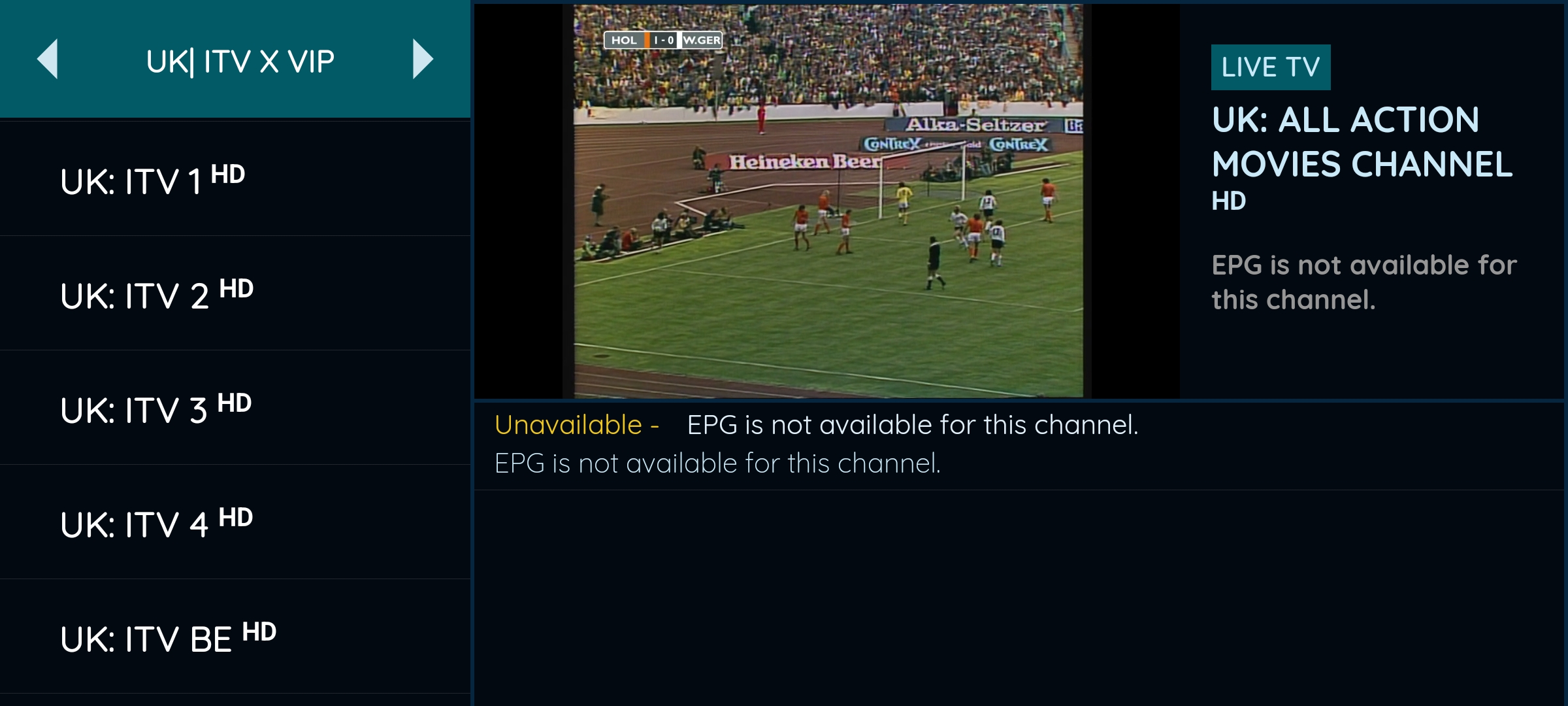
Before choosing a plan, you can test EasyFlixTV on your Smart TV, Firestick, Android box, X96, phone or tablet. Check the channels, streaming quality and setup first, then continue only if it works well for you.
Simple UK streaming checklist
- Open the app at least 30 minutes before a live programme or match.
- Confirm the correct account, membership or provider activation before changing TV settings.
- Restart the TV, Fire TV, Roku, console or laptop and install app updates.
- Use 5 GHz Wi-Fi near the router or Ethernet where possible.
- Keep a backup device ready if the main TV app is unstable.
Related UK streaming guides
- Channel 4 App Not Working? UK Smart TV Fix
- 5 App Not Working? UK Fire TV & Smart TV Fix
- ITVX Not Working on Firestick, Roku or Smart TV?
- Streaming Buffering Fix Guide
Official sources to check
- Smart TVs with the Prime Video app
- Install Prime Video on your devices
- Issues while playing Prime Video titles
- Issues with live streams on Prime Video
Frequently asked questions
Why is Prime Video not working on my Smart TV?
Common causes include outdated TV software, a stuck app session, incorrect date/time settings, weak Wi-Fi, VPN/proxy use or account access problems.
Why does Prime Video show a black screen?
A black screen can happen when the app session is stuck, the device needs an update, the HDMI or DRM check fails, or the TV software is old. Restart, update and test again.
Why does Prime Video buffer during live sport?
Live streams need a stable connection. Use 5 GHz Wi-Fi or Ethernet, pause downloads, restart the router and test a normal video to separate app problems from live-event issues.
Should I disable my VPN for Prime Video?
Yes, while troubleshooting. Amazon recommends deactivating VPN or proxy services when playback fails because they can cause location and authentication errors.
Is EasyFlixTV an official Amazon Prime Video service?
No. EasyFlixTV is an independent setup and troubleshooting guide. Use Amazon help for official account, order and Prime Video support.
Final thoughts
Most UK app problems become easier to fix when you separate account access, device support and home Wi-Fi. Check the official app route first, keep your device updated and test your setup before the programme or match starts.
Need help with your UK streaming setup?
Message EasyFlixTV with your device model and the app problem. We can help you check Smart TV, Fire TV, Roku, Android TV, laptop, console or mobile setup before you choose a plan.
Message EasyFlixTV on WhatsAppContact on Telegram