Sky Go Not Working? UK Fix for Login, Device Limit, Laptop, Mobile and Console Problems
Sky Go is useful when you want Sky channels away from the main TV, but UK users often hit login loops, device limits, app crashes, browser errors or confusion about whether Sky Go can run on a Smart TV. This guide keeps the fix practical and avoids wasting time on unsupported setups.
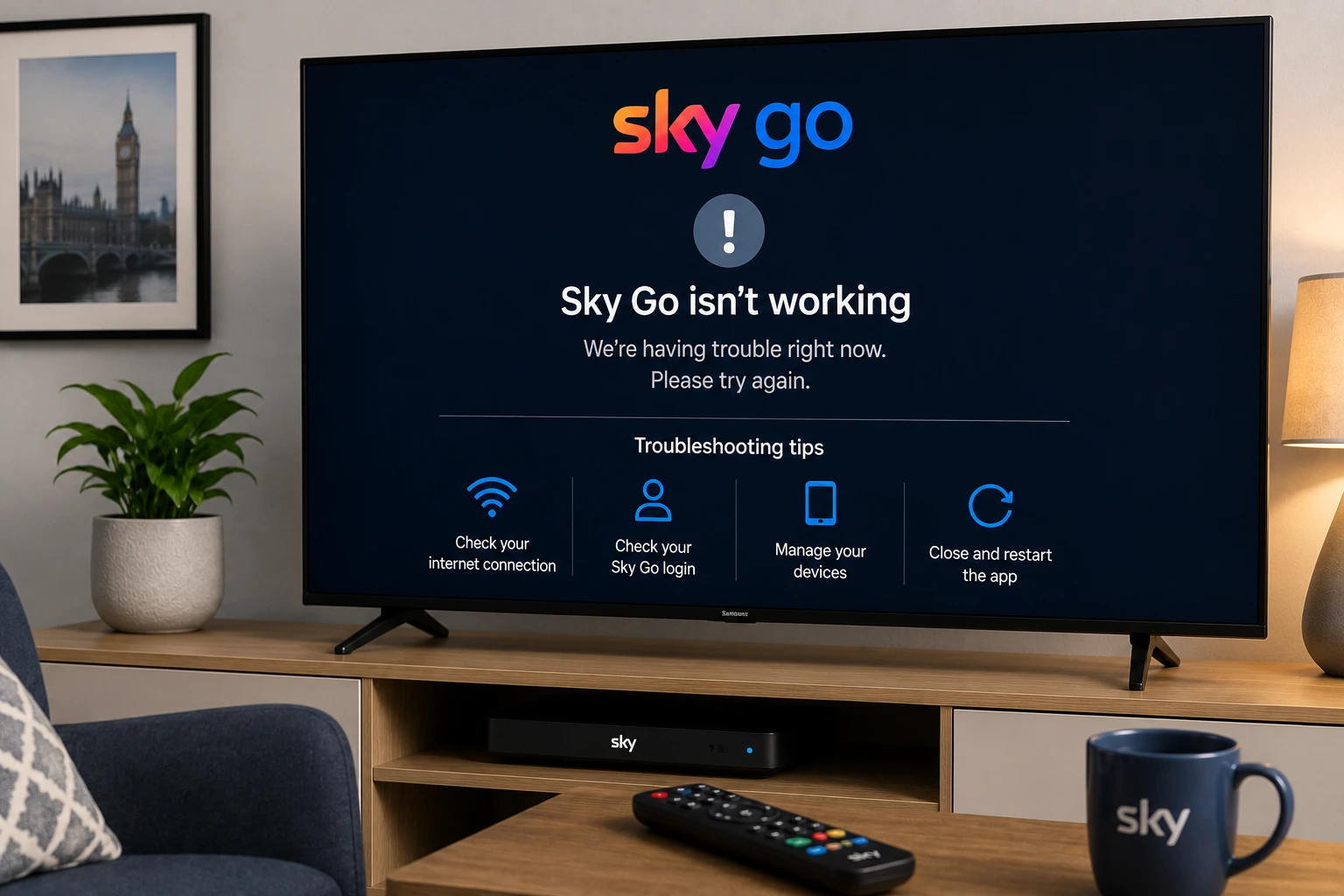
Quick answer: If Sky Go is not working, check your Sky account first, confirm the device is supported, update the app, restart the device, remove old registered devices if needed, and test on another compatible device. Do not assume every Smart TV or casting setup is supported.
UK setup note: Sky Go is mainly built for compatible mobiles, tablets, computers and selected consoles. For the main TV, Sky Q, Sky Stream, Sky Glass or provider-supported TV apps may be more reliable than trying unsupported casting tricks.
Why Sky Go problems happen in the UK
Sky Go is connected to your Sky subscription, device list and app requirements. That means a playback error can be caused by the account, the device, the app version, the operating system or the number of devices already registered on your account.
Before reinstalling the app, ask one question: does Sky Go fail only on one device, or on every device? If it fails only on a laptop, focus on the desktop app, browser, operating system and security software. If it fails everywhere, focus on your subscription, sign-in and account status.
Check supported devices first
A common mistake is trying to use Sky Go like a normal Smart TV app. In the UK, Sky Go support is built around compatible phones, tablets, computers and selected games consoles, not every TV app store. If you cannot find Sky Go on your TV app store, that does not automatically mean your TV is broken.
Use Sky's official device requirements to confirm whether your device is supported. If your device is too old, updating the app will not help; use a supported laptop, mobile device or console instead.
Fix Sky Go login loops
If Sky Go keeps asking you to sign in, close the app fully, restart the device and sign in again using your Sky ID. Check that the date and time are set automatically, because wrong time settings can break secure sign-ins in streaming apps.
On laptops, update the Sky Go desktop app and your operating system. If the app opens to a blank screen, restart the computer, temporarily close conflicting screen recording tools and test again. Avoid entering your Sky details on unofficial help pages.
Fix device limit and registration messages
Sky accounts can have device management rules. If you see a device limit message, open your Sky account management page and remove old devices you no longer use. Then sign in again on the device you want to keep.
Do not repeatedly sign in and out on many devices on match day. This can make the device list harder to manage and leave you with no quick change available when you need to watch.
Laptop, mobile and console checklist
For laptops, use a stable home Wi-Fi connection, update the desktop app, restart the computer and check whether security software or VPN settings are interfering. For mobiles and tablets, update iOS or Android, update the Sky Go app and switch between Wi-Fi and mobile data to isolate the problem.
For PlayStation or Xbox, install updates before the event starts and test a non-live channel first. Consoles often work better on Ethernet than Wi-Fi, especially in busy households.
What to do when Sky Go will not cast to TV
Many UK users search for Sky Go casting fixes because they expect it to behave like YouTube or Netflix. Sky Go casting support is limited, and unsupported mirroring can fail, show a black screen or breach app restrictions. If you want Sky on the main TV, use the official Sky box, Sky Stream, Sky Glass or a supported device route.
If you only need a temporary backup, a laptop connected by HDMI may be simpler than trying to force a casting setup that Sky Go does not officially support on your device.
Try EasyFlixTV Free for 24 Hours First
Before choosing a plan, you can test EasyFlixTV on your Smart TV, Firestick, Android box, X96, phone or tablet. Check the channels, streaming quality and setup first, then continue only if it works well for you.
Simple UK streaming checklist
- Open the app at least 30 minutes before a live programme or match.
- Confirm the correct account, membership or provider activation before changing TV settings.
- Restart the TV, Fire TV, Roku, console or laptop and install app updates.
- Use 5 GHz Wi-Fi near the router or Ethernet where possible.
- Keep a backup device ready if the main TV app is unstable.
Related UK streaming guides
- NOW Sky Sports Not Working? UK Firestick Fix
- Premier League UK Streaming Guide
- Streaming Buffering Fix Guide
- World Cup 2026 UK & Ireland Streaming Guide
Official sources to check
Frequently asked questions
Why is Sky Go not working on my laptop?
The desktop app may need an update, the device may not meet requirements, the account may need a fresh sign-in, or security software may be interfering. Restart, update and test again.
Why does Sky Go say I have too many devices?
Your account may already have registered devices. Remove old devices from your Sky account, then sign in again on the one you want to use.
Can I install Sky Go on any Smart TV?
No. Sky Go is not a normal Smart TV app for every TV brand. Check Sky's official supported device list before troubleshooting a missing app.
Why does Sky Go show a black screen when casting?
Casting and mirroring support is limited. Unsupported casting can show black screens or playback blocks. Use an official Sky TV route or a supported device.
Is EasyFlixTV an official Sky service?
No. EasyFlixTV is an independent setup and troubleshooting guide. Use Sky support for account, subscription and official app help.
Final thoughts
Most UK app problems become easier to fix when you separate account access, device support and home Wi-Fi. Check the official app route first, keep your device updated and test your setup before the programme or match starts.
Need help with your UK streaming setup?
Message EasyFlixTV with your device model and the app problem. We can help you check Smart TV, Fire TV, Roku, Android TV, laptop, console or mobile setup before you choose a plan.
Message EasyFlixTV on WhatsAppContact on Telegram